
Graphics presets#
Open Settings from the gear at the end of the menu bar in flight, or from the Settings button on the title and pilot-select screens. The first tab, Graphics, starts with the Quality preset row: Low, Medium, High, Ultra, Cinematic and Custom.
On your first launch the game reads your graphics card and runs a short calibration (under a second) to pick a preset for you. Under the preset row it shows the GPU it detected and the preset it recommends. If you are on a different preset, a Use recommended button puts you back on it.
- Low
- Integrated graphics and phones: spatial upscaling, no shadows or ambient occlusion.
- Medium
- Entry-level graphics cards and older laptops: spatial upscaling at its sharpest mode, basic shadows, half-resolution ambient occlusion.
- High
- The mainstream target: 60 fps with the XETODUS Temporal upscaler in Quality mode, soft shadows, ambient occlusion, sun shafts and detailed materials.
- Ultra
- Strong desktop cards: 4K shadows, full-resolution ambient occlusion, contact shadows, lens effects and far detail.
- Cinematic
- The fastest cards available: everything at its best, supersampled where your display leaves headroom.
- Custom
- Shown as soon as you change an option the preset sets. Your own mix, kept until you pick a preset again.
| Option | Low | Medium | High | Ultra | Cinematic |
|---|---|---|---|---|---|
| Upscaling | FSR 1.0 | FSR 1.0 | XETODUS Temporal | XETODUS Temporal | XETODUS Temporal |
| Upscaler mode | Balanced | Ultra Q | Quality | Ultra Q | Native AA |
| Resolution scale | 100% | 125% | 125% | 200% | 200% |
| Supersampling | Off | Off | Off | Off | 1.5× (only with upscaling off) |
| Shadow resolution | Off | 1K | 2K | 4K | 4K |
| Soft shadows | Off | Off | PCSS | PCSS | PCSS HQ |
| Contact shadows | Off | Off | Off | On | On |
| Ambient occlusion | Off | Low | Med | High | Ultra |
| Sun shafts | Off | Low | Low | High | High |
| Global illumination | Off | Off | Low | High | Epic |
| Reflections | Low | Medium | Medium | High | High |
| Textures | Low | Medium | High | Ultra | Ultra |
| Materials | Low | Medium | High | Ultra | Ultra |
| Effects | Low | Medium | High | Ultra | Ultra |
| Other pilots' regalia | Markings | Full | Full | Full | Full |
| LOD distance | Near | Normal | Normal | Far | Max |
| Cluster geometry | Perf | Perf | Quality | Quality | Cinematic |
| View distance | Near | Normal | Normal | Far | Max |
| Terrain detail | Low | Medium | Medium | High | High |
| Forests | Off | Sparse | Full | Full | Full |
| Ground cover | Sparse | Sparse | Full | Full | Full |
| Planet clouds | Off | On | On | On | On |
| Water | Low | Medium | High | Ultra | Ultra |
| Sky resolution | 1K | 1.5K | 2K | 4K | 8K |
| Anti-aliasing | Off | FXAA | Temporal | Temporal | Temporal |
| Lens effects | Off | Dirt | Dirt | Full | Full |
| Film grain | Off | On | On | On | On |
| Chromatic aberration | Off | Off | On | On | On |
| Window glass (Auto) | Off | Off | Light | Full | Full |
Bloom, Color grading and Vignette are on in every preset. Ray tracing is off in every preset: you turn it on yourself.
Phones, tablets and integrated graphics#
Presets adjust themselves on lighter hardware. On phones and tablets every preset caps the frame rate at 60 fps, uses the spatial upscaler instead of the temporal one, keeps the sky at 1K and textures at Medium or below, and never supersamples. Phones with little memory also drop to Low textures. On integrated graphics, Cinematic keeps every effect but never supersamples and renders at a lighter internal resolution.
What a preset keeps#
Switching presets never touches your personal choices: Field of view, Brightness, Eye adaptation, the frame rate cap, Background frame rate, Camera shake, Dynamic resolution, Target frame rate, Sharpening, Show FPS, Frame generation, GPU preference, Adaptive quality, Graphics API and the HDR options. Changing any of those also leaves your preset name as it is.

Performance tips#
If the game feels slow, start with the preset: drop one step and see how it plays. When you want finer control, these are the options that move your frame rate the most.
Graphics API#
The Graphics API menu (in the Display group) chooses how your browser draws the game: Auto, WebGL 2 or WebGPU. WebGL 2 is the compatibility path that works in every current browser and is all you need. WebGPU is the newer, optional renderer (the website lists it as a beta); it looks the same and adds a few extras of its own, such as ray tracing and HDR output.
Auto measures both on your own device during real play and keeps WebGPU only where it runs at least as fast as WebGL 2. If WebGPU ever fails to start or stops drawing, the game switches back to WebGL 2 on its own. Changing the Graphics API reloads the game; you stay signed in and return to your ship. The line under the menu shows what is running right now.
Resolution and upscaling#
- Resolution scale (50% to 200%) is the biggest single cost. It is capped by your display, and GPU time follows the pixel count: 75% renders only about 56% of the pixels.
- Upscaling renders the 3D scene at a lower internal resolution and rebuilds the full picture. XETODUS Temporal is the game's own temporal upscaler: it gathers detail over several frames and doubles as the anti-aliasing. It gives the best image and is recommended on desktop cards. The FSR 1.0 option sharpens each frame on its own; it is the cheapest and works everywhere, so phones and low-end machines use it.
- Temporal mode sets the internal resolution: Native AA (100%), Ultra Q (77%), Quality (67%), Balanced (59%), Perf (50%) and Ultra Perf (33%). Lower modes are faster; fine detail takes a few more frames to settle.
- Sharpening sets how crisp the upscaled image looks. It has no real cost.
- Supersampling renders above your display resolution for the sharpest edges. It only works with upscaling off and is very expensive: 1.5× costs about 2.25× the GPU time. If your settings add up to a heavy load, a warning under it says so and suggests the temporal upscaler at Native AA instead.
Let the game hold your frame rate#
- Dynamic resolution (on by default) lowers the resolution, down to 50%, when frames run long and raises it again when there is room, to hold your Target frame rate (30 to 144).
- Adaptive quality (on by default) steps in when that is not enough: it lowers expensive options one at a time, shows a message with an Undo button each time, and brings them back when there is lasting headroom. Turn it off if you never want your settings changed for you.
- The frame rate cap (V-Sync, which follows your display, or a fixed 30 to 165 fps) sits in the Display group. A lower cap saves power and heat on laptops and phones and evens out frame pacing.
- Background frame rate (10, 15, 30, 60 or Unlimited; 30 by default) slows the game while its window is not focused, so a video or another app next to it runs smoothly. A hidden tab does not draw at all; the game keeps running either way.
The heaviest options#
If you have set things up by hand, these carry the highest cost markers. Lower them first, one at a time, and watch the difference with Show FPS turned on:
- Resolution scale and Supersampling (Display).
- Ambient occlusion and Global illumination (Lighting & shadows). High and Ultra ambient occlusion run at full resolution.
- Terrain detail and Forests (Worlds), which matter near planets. These rebuild the planets when changed.
- Sky resolution at 4K or 8K, and Sky artwork at 8K, which also use a lot of video memory.
- Ray tracing, on the WebGPU renderer only (see Advanced graphics).
- Anti-aliasing set to MSAA 4× when the temporal upscaler is off.
Laptops with two graphics chips#
GPU preference asks the browser for High performance, Browser default or Power saving. Browsers pick the actual chip themselves, so if the game still runs on the weaker one, set your browser to use the dedicated card in your operating system's graphics settings. This option applies after a reload.

Advanced graphics#
A few options go beyond the presets. None of them is needed to enjoy the game, and some depend on your renderer or display.
- Ray tracing
- WebGPU renderer only, and off on phones. Five levels run from Off and Reflections, through two steps that add traced shadows and then traced ambient occlusion (+ AO), up to Full, which adds one bounce of traced light from the ships, stations and asteroids around you. The cost grows with each step and is much higher on laptops. Adaptive quality lowers ray tracing first.
- Photo mode
- Enter photo mode (or press F9) hides the HUD and adds depth of field; F10 saves a picture. On the WebGPU renderer, the view refines into a path-traced image while the camera holds still: give it a few seconds.
- HDR output
- Brighter highlights on an HDR display, with the WebGPU renderer. Turning it on reloads the game. Two sliders appear: HDR paper white (how bright the game's white is; raise it in a bright room) and HDR peak brightness (match your display's peak).
- Frame generation (experimental)
- Fills every other refresh with a generated frame, so a high-refresh display looks smoother. Needs the XETODUS Temporal upscaler and a high-refresh display, and switches itself off when the real frame rate drops too low. Turning the camera stays just as responsive; the edges of fast ships can smear slightly.
- Global illumination
- XETODUS Radiance: sunlit hulls, ground and glowing windows light what is around them, and engine plumes and explosions light nearby surfaces. Low to Epic, plus Ultra+ on the WebGPU renderer.
- Cluster geometry
- Keeps big hulls detailed up close while drawing far fewer triangles at a distance. Off uses the classic detail levels.
- Window glass
- Frosted-glass windows that blur the game behind them. Auto, Full, Light or Off; Off is the cheapest on small GPUs.
- Other pilots' regalia
- Honors shown on other pilots' ships: Off, Markings or Full. Your own ship always shows yours.
Comfort options#
Field of view (50° to 90°, 62° by default; it widens with speed), Brightness, Eye adaptation, Camera shake, Film grain, Chromatic aberration, Vignette, Bloom and Color grading (each system's own look from its star and nebula) are mostly about taste. Turn Camera shake off if hits and explosions make you uncomfortable.
Audio, gameplay and interface#
The Settings window has four tabs: Graphics, Audio, Controls and Gameplay. Along the top sit the Account, Discord and Feedback buttons. You can open Settings from the title and pilot-select screens too, so you can tune graphics and controls before you launch.
Audio#
- Four volume sliders: Master volume, Effects, Interface and Music.
- Music variety: Shuffle tracks or One theme per area. Each area (faction stations, Secure, Contested and Lawless space, planet types, colonies, greenhouses, deep space) has its own pool of tracks, shuffled so none repeats until the others have played.
- Quiet gaps between tracks adds silent stretches between songs.
- Now playing shows the current track and where it belongs, with a Next track button. Combat and boss music adapts to the fight and can't be skipped.
Gameplay#
- Auto-retaliate
- Off, Return fire (the default) or Return fire + lock. When another ship attacks yours, your ship locks it and fires back with turrets and missiles. It only ever fires at a lawful target, so it never makes you a criminal in Secure space, and it stands down while you warp, dock or Engage. Press ; in flight to cycle the mode. See Security for the rules it follows.
- Transit cutscenes
- Full or Skip animations. Skipping removes the decorative warp and gate-jump animations; travel time and loading the destination stay the same.
Windows and layout#
- Drag a window by its title bar. Drop it on the top edge to maximize it, on the left or right edge for half the screen, or in a corner for a quarter. Drag an edge or corner to resize; double-click the title bar to maximize or restore. Esc closes the window in front, and windows remember where you left them.
- Unlock HUD lets you drag the status gauge, portrait, modules, Tactical, target card and chat to new places. It is available in flight. See The HUD.
- Reset UI layout (windows and HUD) puts everything back.
- Review Flight School replays the in-game lessons. See Flight School.
- Reset all settings to defaults restores every setting, graphics included.
- The red button at the bottom of the tab leaves the world and takes you back to pilot select.
Controls settings#
The Controls tab covers touch, mouse, keyboard and controllers. For the key bindings themselves, see Desktop controls; in flight, H opens the full key reference.
Flight controls#
- Mouse flight
- Click the view to take the stick: the cursor hides and the mouse moves a virtual joystick. The further the reticle is from the center, the harder you turn. This is the default.
- Mouse aim
- Click the view to take the controls: the mouse moves an aim reticle through space, your ship turns to follow it and your guns fire at it.
- Keyboard
- The arrow keys pitch and yaw, A and D roll. The mouse never turns the ship, so it stays free for windows, the map and targeting.
Below the scheme you can tune how it feels:
- Invert pitch and a sensitivity slider (Stick sensitivity, Aim sensitivity or Mouse sensitivity (camera), depending on the scheme).
- Dead zone and Response curve, with a small graph of the stick's response. A higher curve gives finer control near the center and the same full turn at the edge.
- Stick returns to center (mouse flight): off by default, so the stick stays where you leave it.
- Mouse left / right rolls: the mouse rolls and A / D yaw instead.
- Free the cursor: Hold Alt or Press Alt to free the cursor for windows while the mouse has the stick.
- Aim assist nudges your aim onto a hostile's lead pip when you are close. Linked missiles (Engage and the main trigger) fires missiles along with your guns once the lock is complete.
Touch#
On-screen touch controls: Auto, On or Off. Auto shows the stick and buttons on phones and tablets, and whenever a finger touches the screen. See Touch controls.
Joystick & gamepad#
- Turn it on
Switch on Enable controller flight. The controller steers and the mouse stays free for the interface.
- Wake the device
Connect the controller and press one of its buttons, then pick it in the Device menu.
- Map axes and buttons
Use the live readouts (Pressed buttons, Live axes) to assign the Yaw, Pitch, Roll and Throttle axes and the Fire, Missile, Boost, Brake and Travel to objective buttons. Set unused axes to Unassigned to stop drift.
- Fine-tune
Adjust Stick dead zone, and use Invert controller pitch, Invert throttle axis or Physical throttle lever for throttle levers that set the speed directly.
More in Gamepad and joystick.
Troubleshooting#
The game won't start#
XETODUS needs WebGL 2 (WebGPU is optional). If your browser can't provide either, you'll see a page titled XETODUS needs WebGL 2 or WebGPU. Work through these, then press Try again:
- Update your browser: a current Chrome, Edge or Firefox, or Safari 16.4 or newer.
- Turn on hardware acceleration (sometimes called graphics acceleration) in your browser's settings, then restart the browser.
- Update your graphics driver.
- Check the system requirements for your device.
Graphics device reset#
Sometimes the GPU resets: a driver hiccup, a phone sending the tab to the background, or the tab running out of video memory. You'll see Graphics device reset while the view is restored, and the game drops you straight back in. If it happens again, the game restarts with lighter graphics and tells you so; you can raise them again in Settings › Graphics.
If resets keep coming, the game stops and offers Restart in safe mode instead of looping. If the browser has paused 3D for the site (Your browser paused 3D graphics), close the other tabs and apps that use the GPU, close the browser completely, open XETODUS again and consider updating your graphics driver.
Slow or choppy#
- Press Use recommended next to the preset, or drop one preset.
- Keep Dynamic resolution and Adaptive quality on.
- Lower Resolution scale or switch Upscaling to XETODUS Temporal at a lower mode.
- On a laptop, plug in and check GPU preference (see Performance tips).
- Close other tabs and apps that use the GPU, especially video.
Connection lost and server updates#
If your connection drops, a message says Connection lost and the game reconnects you to the same pilot by itself, retrying for a while before it gives up. You don't need to reload. If you were in a fight when it dropped, your ship stays in space for a short time, so getting back quickly matters.
Before a server update, a banner counts down (Server update in the time left) and tells you that you'll reconnect automatically. When it reaches zero it reads Updating now. Reconnecting in a moment. Docking up before the countdown ends is the safe choice. If a new version went out while you were playing, the game shows XETODUS has been updated. Please reload the page. and reloads for you. If you see Could not reconnect to the server, you're back at the menu: wait a minute and launch your pilot again.
Graphics diagnostics#
At the bottom of Settings › Graphics, open Graphics diagnostics. It shows the graphics card the game detected, which graphics API is running, the calibration result and your live frame rate. It describes your GPU and browser, not you.
- Copy report copies a plain-text summary of your graphics setup to paste into a bug report.
- Copy performance report measures 120 frames of the running game and copies the result. Fly or dock where the game runs slowly, then press it. If your browser blocks the clipboard, the report stays on screen with Copy again and Download buttons.
- Re-run calibration measures your GPU again (on WebGL 2) and offers Apply recommended preset if the result differs.
Still stuck?#
Press F8 in game, or Feedback in Settings, to send a Bug, Idea, Balance or Other note straight to the team, with an optional screenshot. Paste your diagnostics report into it for graphics problems. You can also ask other pilots and the team on the XETODUS Discord.
Frequently asked questions#
The full answers live on the home page FAQ. Here is each question with the guide section that covers it.
- Is XETODUS free to play?Yes, every ship, module, system and core skill. The membership is optional.
- Do I need to download anything?No. It runs in a modern browser with WebGL 2, and you can install it as an app.
- Which devices and browsers work?Current desktop browsers, phones and tablets. Presets adapt to your GPU.
- What are the system requirements?Minimum and recommended specs for PC, Mac, phones and tablets.
- Is it a single-player game?No. Every pilot you meet shares one persistent universe.
- Can I play on my phone?Yes, with touch flight controls and lighter presets.
- What is the Vanguard Charter?The optional membership: more room, more style and members' skills.
- Do the Vanguard skills give members an edge?No. They never count toward total level or the Overall ranking.
- Can I buy credits, ships or items with real money?No. They are earned in play; Aether can never become credits or items.
- Is there a reward for bringing friends?Yes, through Recruit a Wingmate: cosmetic and account-bound rewards.
- Is there a community I can join?Yes: the official Discord, and Feedback (F8) in game.
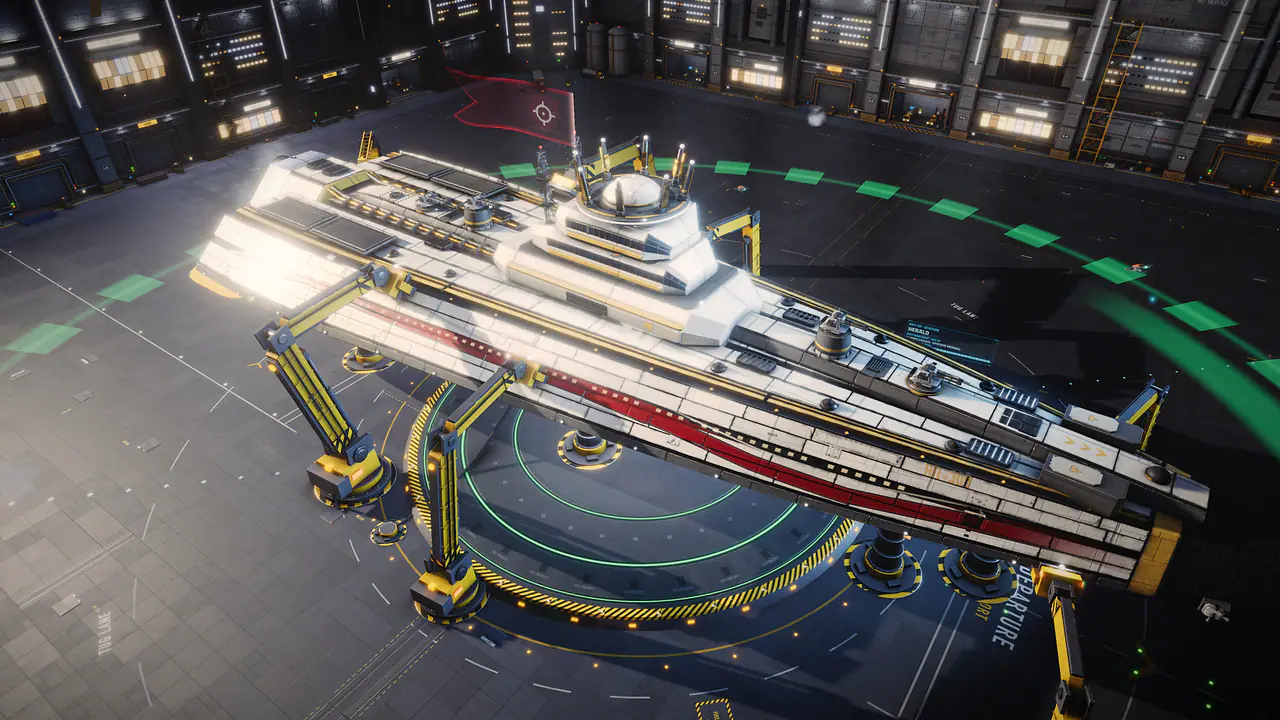
- Are the screenshots on this page real?Yes. They were rendered by the game itself at the Cinematic preset.
Want the referral rules in full? See Recruit a Wingmate.
Something missing or out of date? Tell us on our Discord. More answers in the FAQ.